Windows desktop companion

Keep every moment in view. Pause. Live. Resume.

Alt+Tab out without losing the game. Game in Picture keeps it live in a corner, pauses it when you need to step away, and controls its sound.

Where it helps

What Game in Picture does

GiP brings together the controls you actually reach for mid-session: stay aware, pause safely, handle audio, and place the overlay where it does not get in the way.

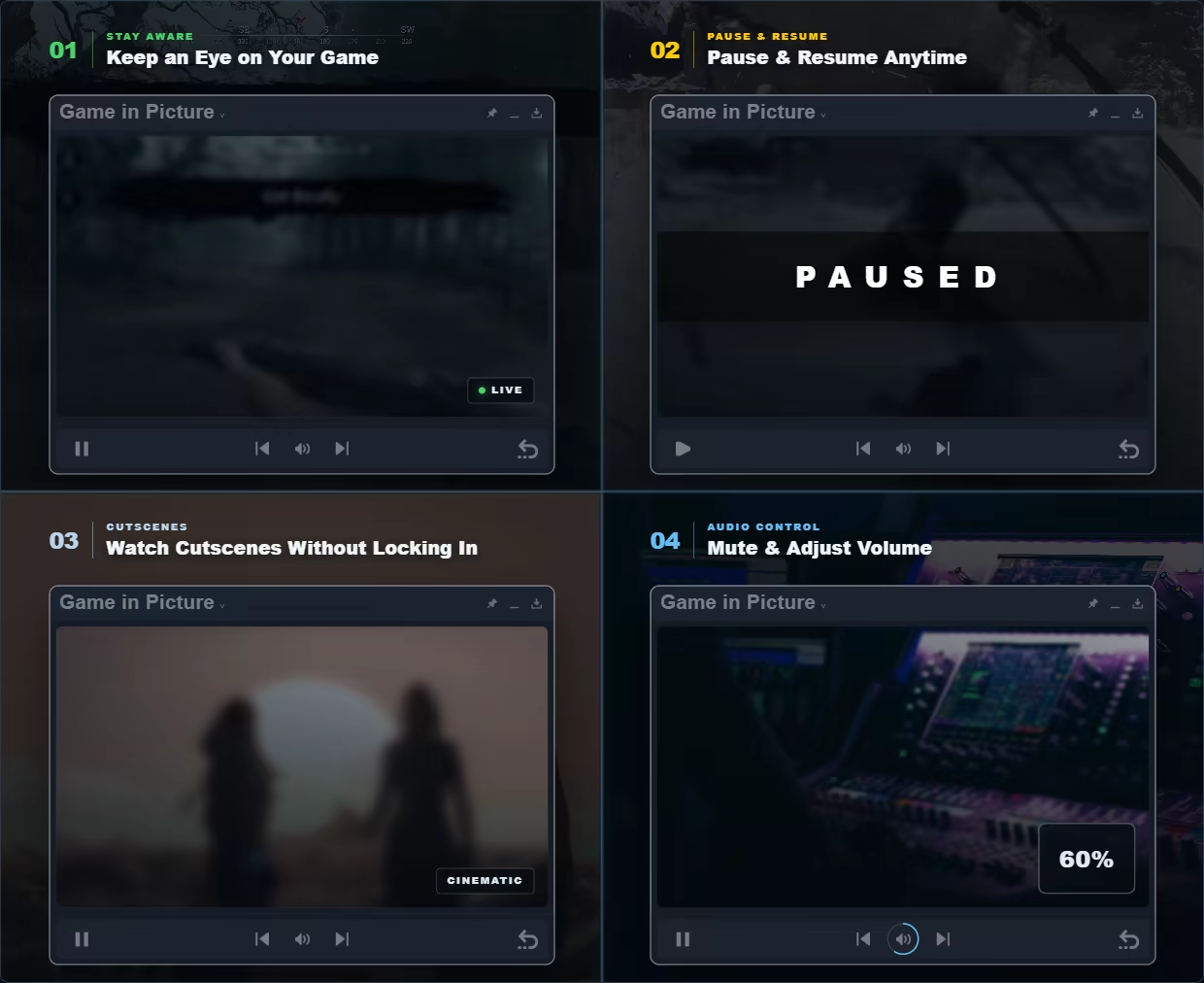
Four Game in Picture overlays: keeping an eye on your game, pausing and resuming, watching a cutscene, and adjusting volume to 60 percent.

Built around real interruptions

Why players reach for Game in Picture

GiP starts with the moments that break a session: a game that will not pause, audio that needs fixing now, or a cinematic you cannot restart.

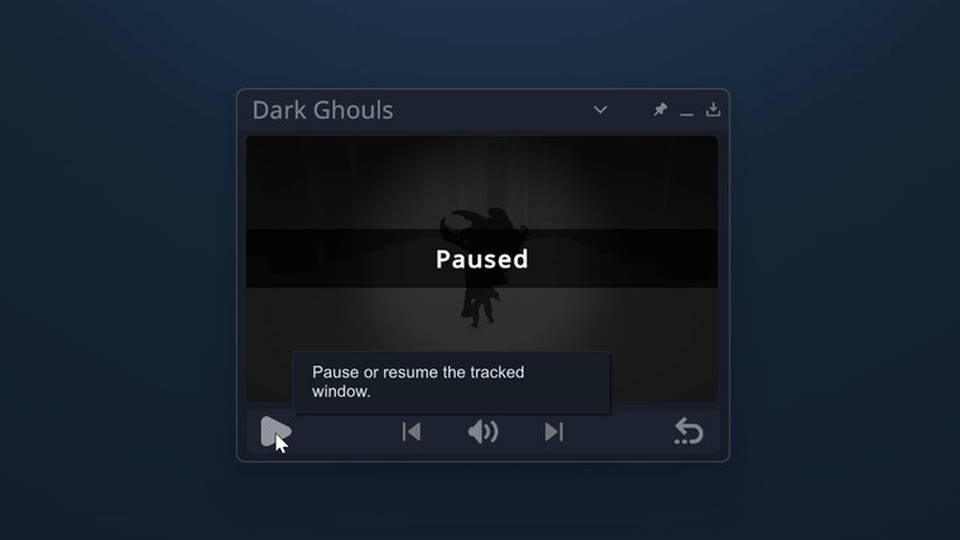
The Game in Picture overlay showing a paused single-player PC game, with pause and resume controls.

No pause button? Not a problem!

Pause any single-player game when real life interrupts

Plenty of games keep moving when their menu opens, Soulslikes most of all. For supported offline or single-player titles, GiP can pause and resume from its overlay, with optional per-game auto-pause when you leave fullscreen.

How to pause single-player PC games
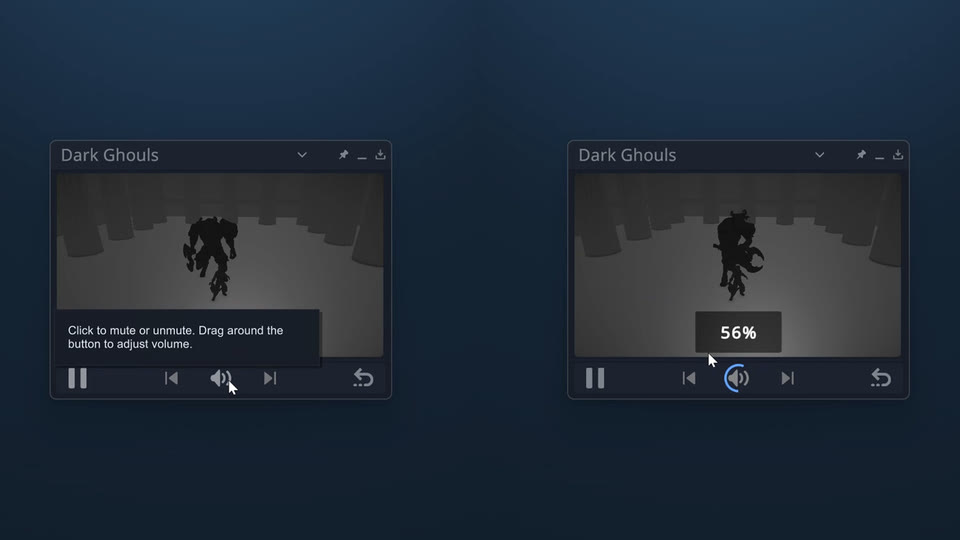
Game in Picture controls showing mute and per-game volume adjustment.

Too loud? Too quiet?

Control game audio without hunting for Volume Mixer

Mute, unmute or change the tracked application's volume from the overlay. Auto-mute can quiet the game when you switch away and restore it when you return, without changing every other app.

Control individual game volume on Windows
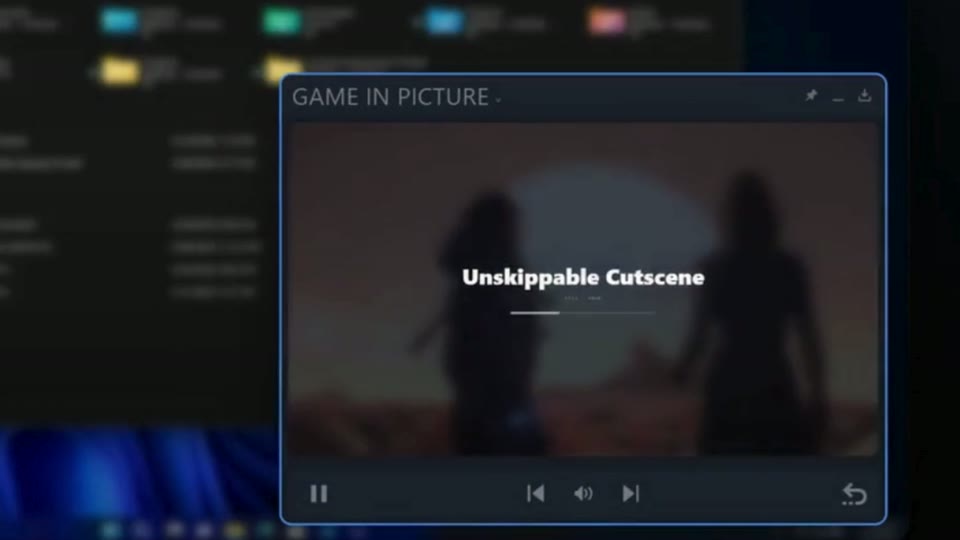
A cutscene playing inside the Game in Picture overlay while a file manager is open behind it.

Cinematic started?

Keep the cutscene visible while you do something else

Step out of fullscreen without turning the game into a mystery. GiP keeps the live scene visible in picture-in-picture so you can answer a message, check a guide or handle a quick task without missing the story beat.

Keep game cinematics visible while multitasking

See it in action

Game in Picture in use

Features

Everything the overlay gives you

All of it exists for one reason: leaving the game should not mean losing track of it.

Stay aware

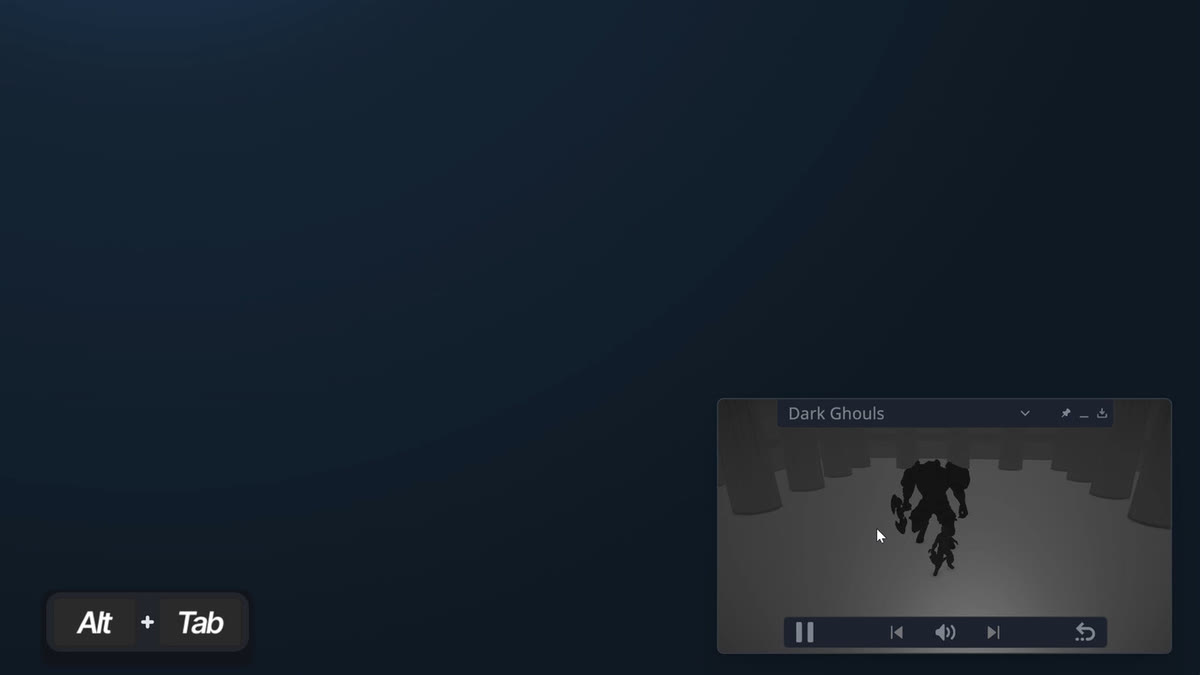
Your game stays on screen when you Alt+Tab

Instead of losing awareness the moment you leave fullscreen, GiP keeps a live view of your game within reach. Answer a message, check a guide, or reply to a friend without wondering what you walked away from.

Interruptions cost you less, and you pick the session back up where you left it instead of guessing what happened while you were away.

A desktop with the Game in Picture overlay showing a live view of the game Dark Ghouls after an Alt+Tab.

Pause and resume

Pause when you need to, per game and automatically

Pause and resume supported single-player or offline games directly from GiP when you need to step away. Auto-pause can be enabled separately for each game, so GiP pauses it when you leave fullscreen and resumes it when you come back.

  • Manual pause from the overlay's own controls
  • Per-game auto-pause tied to leaving and re-entering fullscreen
  • Online-aware. If a game has online capabilities or active network traffic, GiP flags it before pausing so the call stays yours

Audio & media

Media and audio controls in one place

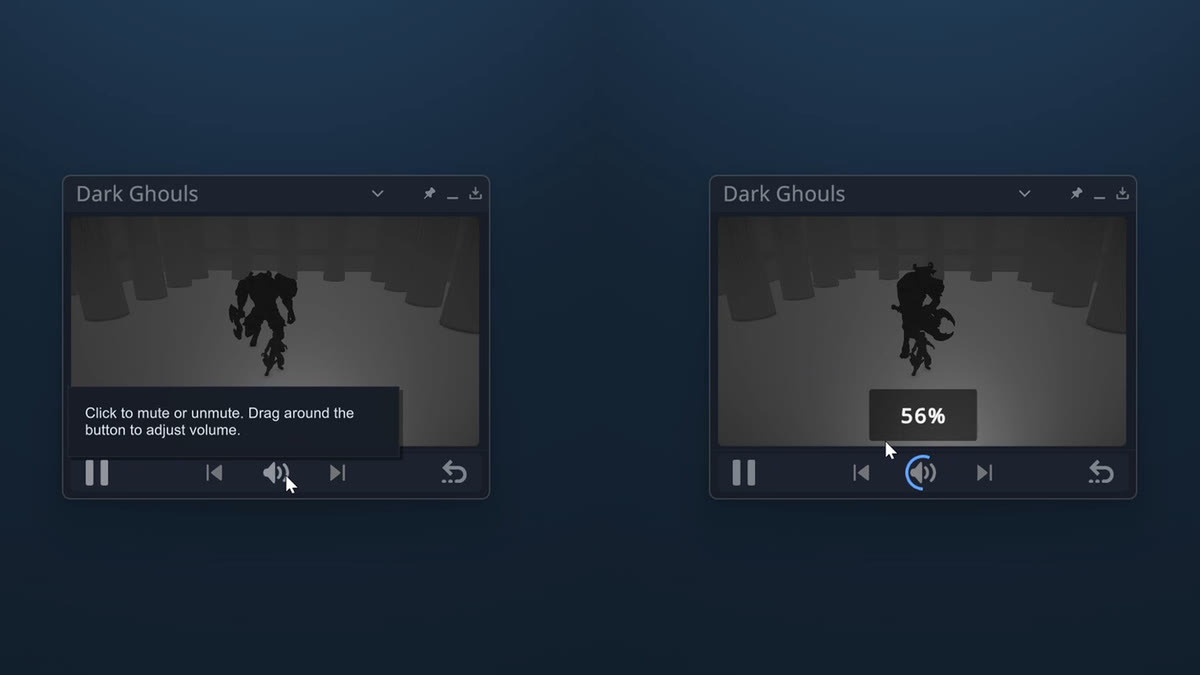
Control the tracked application's sound without opening the Windows volume mixer. Click the audio control to mute or unmute, then drag around it to adjust volume. Auto-mute can silence the tracked window whenever you switch away and restore its sound when you return.

For recognised browsers and media players, GiP also provides play/pause and previous/next commands when the application supports them.

Two Game in Picture overlays side by side: one showing the mute tooltip, the other showing a 56 percent volume readout on the audio dial.

Control and appearance

Set it up the way you play

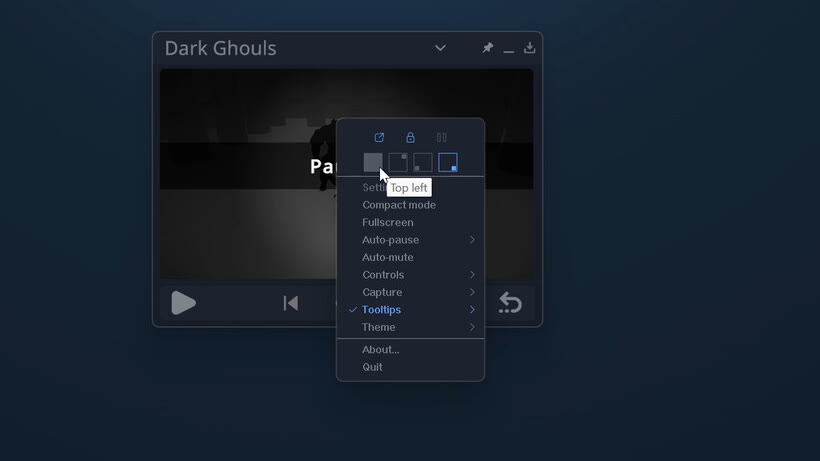
The Game in Picture context menu open over a game, with entries for Settings, Compact mode, Fullscreen, Auto-pause, Auto-mute, Controls, Capture, Tooltips and Theme, plus corner-position buttons showing a Top left tooltip.

Source control

Manual source control and Pin mode

By default GiP automatically follows the fullscreen window you Alt+Tab away from. When you want tighter control, Explicit Tracking only changes the source when you hold the backtick ` key while Alt+Tabbing, while Manual Selection lets you choose a specific eligible window from the source list.

Pin Mode keeps GiP visible over fullscreen windows, so you can move between fullscreen apps while the overlay shows the window you switched away from.

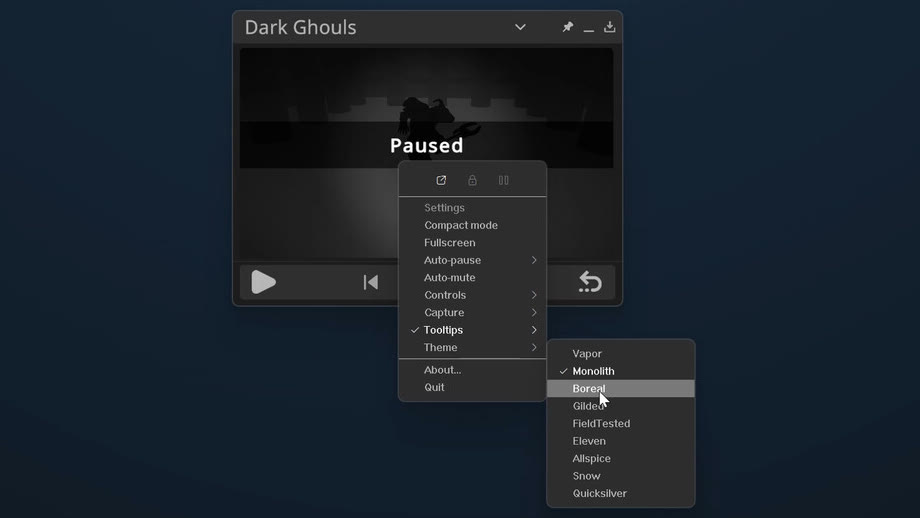
The Game in Picture theme submenu open over a paused game, listing Vapor, Monolith, Boreal, Gilded, FieldTested, Eleven, Allspice, Snow and Quicksilver, with Monolith currently selected.

Themes

Nine themes, one coherent look

Match GiP to the rest of your setup with a selection of coordinated visual themes. Each theme updates the interface consistently while preserving clear controls and readable information across different games and desktop environments.

Choose from Vapor, Monolith, Boreal, Gilded, FieldTested, Eleven, Allspice, Snow and Quicksilver.

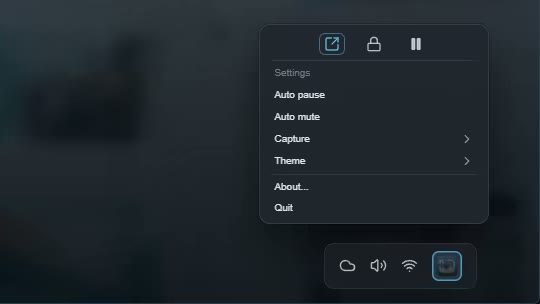
The Game in Picture system tray menu with quick actions for common controls and capture options.

Tray

Tray integration and quick access

Keep GiP available for long sessions without adding unnecessary desktop clutter. Send it to the system tray when it is not needed, restore it quickly, and use convenient tray actions to reach common controls and capture options.

Size & placement

Sized and placed exactly where you want it

Resize and position GiP to suit your screen, game and workspace. Keep the overlay pinned in a corner, move it wherever it avoids important on-screen information, or use a compact floating layout that stays useful without taking over your display.

Resize and reposition
Drag it anywhere and scale it to taste. Park it in a corner or float it where it will not cover anything that matters.
Expanded View
Double-click to hand more of the window over to the captured image and keep surrounding interface out of the way. Move the pointer back over GiP whenever you need its title bar or controls again.
Fullscreen
A separate option in the context menu expands GiP across the entire display when you want the captured window and nothing else.

Full capability list

16 capabilities
Game in Picture capabilities, grouped by source and tracking, pause, audio and media, view and placement, and appearance and system.
Capability What it does
Source & tracking
Automatic following Follows the fullscreen window you Alt+Tab away from. This is the default.
Explicit Tracking Only changes the source when you hold the backtick ` key while Alt+Tabbing.
Manual Selection Choose a specific eligible window from the source list, including apps that are not games.
Pin Mode Stays visible over fullscreen windows while you move between fullscreen apps.
Pause
Manual pause and resume Pauses supported single-player or offline games from the overlay, including titles whose own menu does not stop the action.
Per-game auto-pause Enabled separately for each game. Pauses when you leave fullscreen, resumes when you return.
Online-aware warning Flags games with online capabilities or active network traffic before pausing, so the call stays yours.
Audio & media
Mute and unmute Click the audio control on the overlay. No Windows Volume Mixer needed.
Volume for the tracked app Drag around the audio control to set the tracked application's volume, without touching every other app.
Auto-mute Silences the tracked window when you switch away and restores its sound when you return.
Media commands Play/pause and previous/next for recognised browsers and media players, where the application supports them.
View & placement
Resize and reposition Drag the overlay anywhere and scale it to suit the screen, the game and the workspace.
Expanded View Double-click to hand more of the window to the captured image and keep surrounding interface out of the way.
Fullscreen Expands GiP across the entire display when you want the captured window and nothing else.
Appearance & system
Nine themes Vapor, Monolith, Boreal, Gilded, FieldTested, Eleven, Allspice, Snow and Quicksilver.
System tray Send GiP to the tray when it is not needed, restore it quickly, and reach common controls and capture options from tray actions.

Screenshots

Game in Picture on the desktop

Compatibility

System requirements

Game in Picture needs a 64-bit processor and operating system.

Minimum

OS
Windows 10 64-bit, version 1903 (May 2019 Update) or newer
Processor
64-bit dual-core CPU
Memory
1024 MB RAM
Graphics
DirectX 11 capable GPU
DirectX
Version 11
Storage
500 MB available space

Recommended

OS
Windows 11
Processor
64-bit quad-core CPU
Memory
2048 MB RAM
Graphics
Dedicated DirectX 11 capable GPU
DirectX
Version 11
Storage
1024 MB available space

Product

Developer
Adosoft Interactive
Publisher
Adosoft Interactive
Storefront
Steam
Category
Utility, game overlay
Themes
Nine, coordinated
Platform
Windows 10 and 11
  • Picture-in-Picture
  • Game overlay
  • Auto-pause
  • Audio control
  • Multitasking
  • Single-player
  • Windows

FAQ

Frequently asked questions

What is picture-in-picture (PiP) for games?

Picture-in-picture (also written picture in picture, and often shortened to PiP) means showing one application inside a small floating window on top of whatever else you are doing. Game in Picture applies that idea to PC games: when you Alt+Tab out of a fullscreen game, GiP keeps a live view of it in a compact overlay so you stay aware of what is happening instead of staring at your desktop.

Does Game in Picture work with fullscreen games?

Yes. By default GiP automatically follows the fullscreen window you Alt+Tab away from, so the game you just left is the one shown in the overlay. Pin mode keeps GiP visible over fullscreen windows, so you can move between fullscreen apps while the overlay stays on top.

Can Game in Picture pause a single-player game?

Yes. You can pause and resume supported single-player or offline games directly from GiP. Auto-pause can be enabled separately for each game, so GiP pauses it when you leave fullscreen and resumes it when you return.

Can I pause a game that has no pause menu, like a Soulslike?

GiP can pause supported single-player or offline games even when their own menu does not stop the action. Support varies from game to game, so try it in a quiet moment first, and keep it to offline sessions. See the guide to pausing single-player PC games for the full workflow.

Can I use Game in Picture with online or multiplayer games?

Yes for the overlay, which simply shows a live view of the window. Pausing is the one to think about: if a game has online capabilities or active network traffic, GiP flags it before pausing so the call stays yours.

Can Game in Picture show apps other than games?

Yes. Manual Selection lets you choose any eligible window from the source list, so you can keep a browser, a guide, a video or another application in the picture-in-picture overlay, and keep it visible over the fullscreen app you are using.

Does Game in Picture include volume and media controls?

Yes. You can control the tracked application's sound without opening the Windows volume mixer: click the audio control to mute or unmute, then drag around it to adjust volume. Auto-mute can silence the tracked window when you switch away and restore its sound when you return.

For recognised browsers and media players, GiP also provides play/pause and previous/next commands when the application supports them.

How do I choose which window Game in Picture shows?

There are three modes. Automatic following is the default and tracks whatever fullscreen window you Alt+Tab away from. Explicit Tracking only changes the source when you hold the backtick ` key while Alt+Tabbing. Manual Selection lets you pick a specific eligible window from the source list.

What are the system requirements for Game in Picture?

A 64-bit processor and operating system are required: Windows 10 64-bit version 1903 (May 2019 Update) or newer, a 64-bit dual-core CPU, 1024 MB RAM, a DirectX 11 capable GPU and 500 MB of available storage. Windows 11 with a 64-bit quad-core CPU, 2048 MB RAM, a dedicated DirectX 11 capable GPU and 1024 MB of available storage is recommended. See the full requirements.

How many themes does Game in Picture have?

Nine coordinated themes: Vapor, Monolith, Boreal, Gilded, FieldTested, Eleven, Allspice, Snow and Quicksilver. Each one restyles the interface consistently while keeping controls clear and information readable.

Where can I get Game in Picture?

Game in Picture is on Steam. It is developed and published by Adosoft Interactive and runs on Windows 10 and Windows 11.

Game in Picture

On Steam

Stop missing the action

Game in Picture is built for long sessions, frequent interruptions, and players who constantly multitask. The game waits for you.