
Short answer: Game in Picture keeps a live view of the fullscreen game you just left. When a cutscene continues after Alt+Tab, you can keep it visible in the overlay while answering a message, checking a guide or handling a short desktop task.
What Alt+Tab does during a cinematic
PC games handle focus loss differently. One may pause automatically, another may minimize, and another may keep playing both video and audio while its window disappears. You often do not know which behavior you will get until after the cutscene starts.
The problem is not only missing dialogue. Cinematics can contain choices, quick-time events, environmental clues or transitions straight back into live gameplay. A picture-in-picture view preserves awareness even when your desktop needs the foreground.
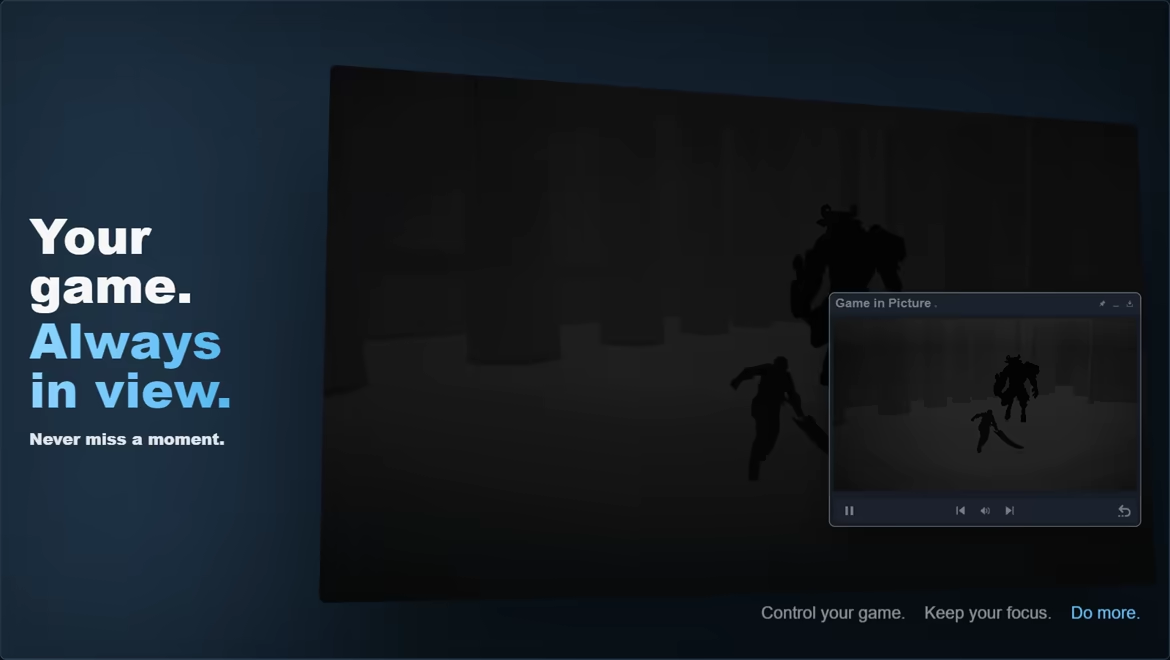
A simple cutscene multitasking workflow
-
Start Game in Picture before the session. GiP is most useful when it is already available in the tray and ready to follow the fullscreen game you leave.
-
Alt+Tab when the interruption arrives. By default, GiP tracks the fullscreen window you switched away from and places its live view in the overlay.
-
Resize and place the overlay. Keep it large enough to read subtitles, then move it away from the message, guide or task that needs your attention.
-
Choose what should happen to audio. Leave the game audible, lower only its volume, or mute it from the overlay. Auto-mute is useful when you want every focus change to quiet the game.
-
Return before interaction resumes. Watch for dialogue choices, prompts or the transition back to gameplay. The overlay preserves awareness; it does not play the game for you.
Make subtitles and story details readable
A tiny corner preview is enough for monitoring idle gameplay, but story scenes need more room. Resize GiP until subtitles remain readable at your normal viewing distance. Expanded View hands more of the window to the captured image and reduces surrounding interface until you move the pointer back over it.
- Place the overlay away from the desktop content you are using
- Increase its size when subtitles or dialogue choices appear
- Use Pin mode when the overlay must remain above another fullscreen app
- Return to the game before a cinematic becomes interactive
Keep the cinematic audible, or quiet only the game
If the story matters, leave the tracked game's sound active and lower other apps. If the desktop task requires concentration or a call, mute only the game without changing system volume. GiP can adjust the tracked application's audio session directly, while Windows Volume Mixer remains available for more detailed routing and troubleshooting.
The separate guide to individual game volume explains mute, volume adjustment, auto-mute and the difference between game audio controls and media-player transport controls.
Should you pause the game or keep watching?
Keep watching when the interruption is short and you still care about the visual story. Pause when the task needs your full attention, the scene becomes interactive, or you cannot read and work at the same time. GiP can pause supported offline or single-player titles; online sessions are for watching rather than pausing.
You can monitor more than games
Manual Selection can choose another eligible window instead of the game. That means the same overlay can keep a browser video, guide or other application visible over the fullscreen app you are using. Automatic tracking remains the simplest mode for the common “cutscene started, then I had to Alt+Tab” moment.