
Short answer: Windows lets you change volume per app in Volume Mixer. Game in Picture gives you a faster route for the tracked game: mute or unmute it from the overlay, drag around the audio control to set its level, or use auto-mute when you switch away.
Why the master volume is the wrong control
Your keyboard's volume keys usually change the entire output device. That lowers the game, but it also lowers Discord, music, a browser video and every notification. Per-app volume solves a different problem: changing one sound source while leaving the rest of the mix alone.
Common examples include a game that launches much louder than expected, dialogue that is too quiet under music, a boss fight drowning out voice chat, or a cutscene continuing while you answer a call.
Option 1: use Windows Volume Mixer
Windows already provides per-application volume. In Windows 11, open Start → Settings → System → Sound → Volume mixer, find the running game under Apps and adjust its slider or mute state. Windows 10 exposes the same idea by right-clicking the taskbar speaker icon and choosing Open Volume mixer.
This is the right choice when you need a one-off adjustment, want to choose a different output device, or are troubleshooting an application that has no sound. Microsoft's official app-audio guide also covers output-device and driver checks.
Option 2: control the tracked game from GiP
-
Track the game. Let GiP follow the fullscreen window you Alt+Tab away from, or choose the game with Manual Selection.
-
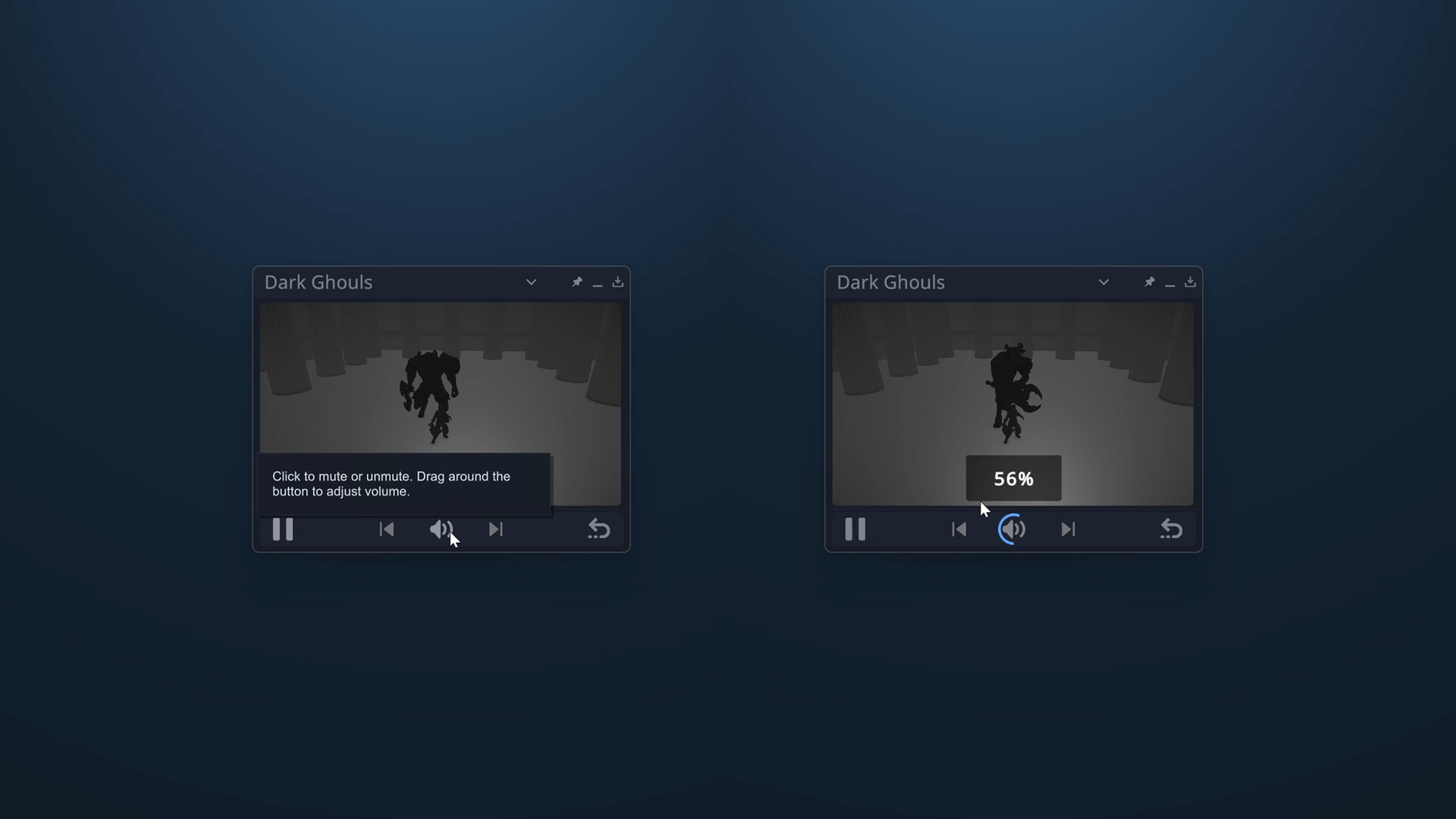
Mute or unmute immediately. Click the overlay's audio control to toggle sound for the tracked application without changing your other apps.
-
Set a specific game volume. Drag around the audio control to raise or lower the tracked app. The overlay shows the percentage while you adjust it.
-
Decide whether switching away should mute it. Enable auto-mute when you want the tracked game's sound to stop after Alt+Tab and return when you go back.
When auto-mute is the useful hook
Auto-mute is different from setting a game permanently quiet. It follows your attention. Leave fullscreen and the tracked window can fall silent; return and its audio comes back. That is useful when you frequently move between a game and another task but do not want to rebuild your mix each time.
- Answer a voice call without game audio underneath it
- Watch a guide in the browser while keeping the game visible but quiet
- Keep Discord or music at the same level while lowering only the game
- Silence an idle title during long Alt+Tab breaks
Game audio controls versus media controls
Volume, mute and auto-mute work with the tracked application's audio session. Play/pause and previous/next are a separate feature for recognised browsers and media players when those applications expose compatible media commands. A PC game is not automatically a media player, so do not assume those transport controls will control its soundtrack.
If the game does not appear as an audio source
Make sure the game is currently producing sound. Some applications do not create an audio session until playback begins. Confirm that Windows Volume Mixer can see the app, check its output device, and restart the game after changing audio hardware. If Windows cannot see an app-specific audio session, an overlay cannot reliably control it either.